
Overview #
Conditional Logic allows you to control when your custom email messages are displayed based on specific order, customer, and product attributes. Instead of showing the same message to every customer, you can create dynamic rules that determine whether a message should appear based on conditions you define.
What You Can Do with Conditional Logic #
- Show messages only to returning customers
- Hide messages for orders under a certain value
- Display different content based on payment method
- Target customers who order from specific product categories
- Create VIP-only communications for high-value orders
- Customize messaging based on shipping method
Accessing Conditional Logic #
- Open any product in WooCommerce
- Navigate to the Product Data section
- Find the desired order status tab (Processing, Completed, On Hold, or Refunded)
- Click the Customize Email button to open the message editor
- Select a message card from the list
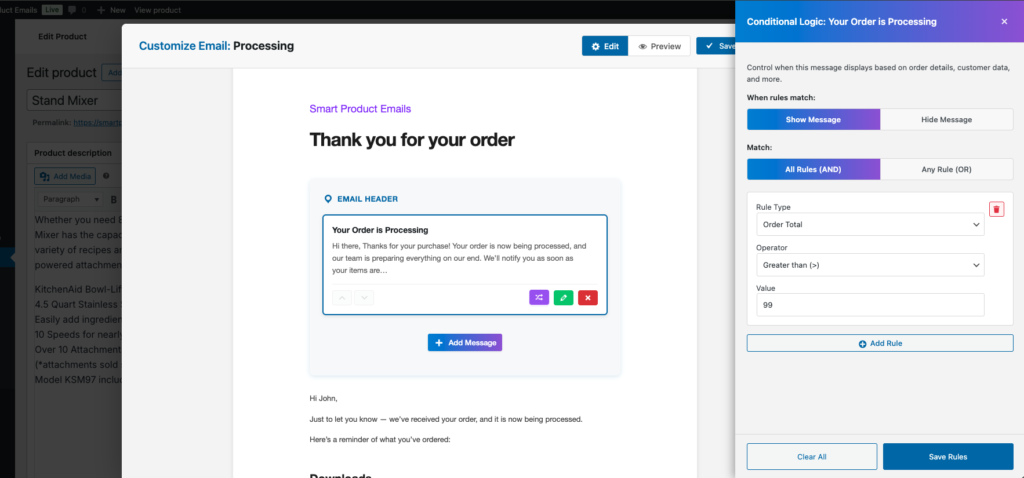
- Click the Conditional Logic button (randomize icon) in the message card’s action buttons
A side panel will slide in from the right where you can configure your rules.
How It Works #
Conditional Logic uses a rule-based system with three main components:
| Component | Purpose |
|---|---|
| Mode | Determines what happens when rules match (Show or Hide) |
| Match Type | Determines how multiple rules are evaluated (AND or OR) |
| Rules | The individual conditions that are checked |
Mode: Show vs Hide #
When configuring conditional logic, you first choose what happens when your rules match:
Show Message Mode #
The message is displayed only when the conditions are met.
Example:
- Rule: Order Total > $100
- Result: Message only appears for orders over $100
Hide Message Mode #
The message is hidden when the conditions are met (displayed otherwise).
Example:
- Rule: Customer Type = New
- Result: Message is hidden for new customers, shown to returning customers
Choosing the Right Mode #
| Scenario | Recommended Mode |
|---|---|
| Show special content for VIP customers | Show Message |
| Hide “spend more” reminder when threshold met | Hide Message |
| Display category-specific care instructions | Show Message |
| Remove first-time buyer message for returning customers | Hide Message |
Match Type: All vs Any #
When you have multiple rules, you choose how they should be evaluated:
All Rules (AND) #
Every rule must be true for the condition to match. This is more restrictive.
Example with two rules:
- Rule 1: Order Total > $100
- Rule 2: Customer Type = Returning
Result: Message shows only for returning customers who spent over $100. Both conditions must be met.
Any Rule (OR) #
At least one rule must be true for the condition to match. This is more permissive.
Example with two rules:
- Rule 1: Order Total > $100
- Rule 2: Customer Type = Returning
Result: Message shows for any order over $100 OR any returning customer. Only one condition needs to be met.
Available Conditions #
Order Conditions #
| Condition | Operators | Description |
|---|---|---|
| Order Total | Greater than, Less than, Equals, Between | The total order amount including shipping and taxes |
| Order Subtotal | Greater than, Less than, Equals, Between | The order amount before shipping and taxes |
| Item Count | Greater than, Less than, Equals | The number of items in the order |
Customer Conditions #
| Condition | Operators | Description |
|---|---|---|
| Customer Type | Equals, Not Equals | Whether the customer is New or Returning |
| Customer Order Count | Greater than, Less than, Equals | Total number of orders the customer has placed |
| Customer Role | Equals, Not Equals | The WordPress user role (e.g., Subscriber, Customer, Wholesale) |
Product Conditions #
| Condition | Operators | Description |
|---|---|---|
| Product Category | Contains, Does Not Contain | Whether the order contains products from a specific category |
| Product Tag | Contains, Does Not Contain | Whether the order contains products with a specific tag |
Payment & Shipping Conditions #
| Condition | Operators | Description |
|---|---|---|
| Payment Method | Equals, Not Equals | The payment method used (e.g., Credit Card, PayPal) |
| Shipping Method | Equals, Not Equals | The shipping method selected (e.g., Flat Rate, Free Shipping) |
Creating Rules #
Adding a Rule #
- Click Add Rule to create a new condition
- Select a Rule Type from the dropdown
- Choose an Operator (options vary by rule type)
- Enter or select a Value
- Repeat to add additional rules as needed
- Click Save Rules to apply
Removing a Rule #
Click the red Remove button (trash icon) on the rule row to remove it.
Clearing All Rules #
Click Clear All at the bottom of the panel to remove all rules and disable conditional logic for that message.
Visual Indicator #
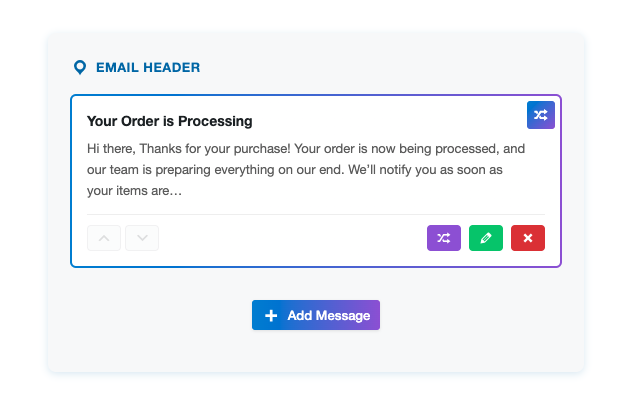
Messages with active conditional logic display a gradient border (blue to purple) and an icon in the top-right corner of the message card. This makes it easy to identify which messages have rules configured at a glance.
Practical Use Cases #
1. VIP Customer Thank You #
Show a special thank you message only to returning customers who spend over $200.
Configuration:
- Mode: Show Message
- Match: All Rules (AND)
- Rules:
- Customer Type Equals Returning
- Order Total Greater than 200
2. First-Time Buyer Welcome #
Show a welcome message with discount code for new customers on their first purchase.
Configuration:
- Mode: Show Message
- Match: All Rules (AND)
- Rules:
- Customer Type Equals New
- Customer Order Count Equals 1
3. Free Shipping Reminder #
Hide the “spend more for free shipping” message when the customer already qualifies.
Configuration:
- Mode: Hide Message
- Match: Any Rule (OR)
- Rules:
- Order Total Greater than 75
- Shipping Method Equals Free Shipping
4. Category-Specific Care Instructions #
Show care instructions only for orders containing clothing items.
Configuration:
- Mode: Show Message
- Match: Any Rule (OR)
- Rules:
- Product Category Contains Clothing
- Product Category Contains Textiles
5. Wholesale Customer Communication #
Show wholesale-specific pricing information only to wholesale customers.
Configuration:
- Mode: Show Message
- Match: All Rules (AND)
- Rules:
- Customer Role Equals Wholesale Customer
6. High-Value Order Appreciation #
Show an extra appreciation message for large orders.
Configuration:
- Mode: Show Message
- Match: All Rules (AND)
- Rules:
- Order Total Greater than 500
- Item Count Greater than 5
7. Payment Method Instructions #
Show bank transfer instructions only for orders using that payment method.
Configuration:
- Mode: Show Message
- Match: All Rules (AND)
- Rules:
- Payment Method Equals Bank Transfer
8. Local Pickup Information #
Show store pickup details only for local pickup orders.
Configuration:
- Mode: Show Message
- Match: All Rules (AND)
- Rules:
- Shipping Method Equals Local Pickup
Tips & Best Practices #
Start Simple #
Begin with one or two rules and test before adding complexity. It’s easier to troubleshoot simple rule sets.
Test Different Scenarios #
Place test orders with different:
- Order amounts
- Customer types (new vs returning)
- Products from different categories
- Payment methods
- Shipping methods
Verify your rules work as expected in each scenario.
Consider Both Modes #
Sometimes it’s easier to define when to hide a message rather than when to show it. Think about which approach requires fewer rules.
Document Your Logic #
Use descriptive message titles so you remember what each message is for and what conditions apply. For example: “VIP Thank You (Orders > $200)” or “Care Instructions (Clothing Only)”.
Avoid Conflicting Rules #
When using All Rules (AND), make sure your rules don’t contradict each other. For example, “Order Total = 100” AND “Order Total = 200” will never match.
Keep Rules Maintainable #
If you find yourself creating many complex rules, consider whether you need separate messages instead of one message with many conditions.
Troubleshooting #
Message Not Appearing When Expected #
- Verify Mode is correct — Check if Show or Hide is set appropriately
- Check Match Type — Should it be “Any” (OR) instead of “All” (AND)?
- Confirm condition values — Are the numbers and selections correct?
- Test the specific scenario — Place an order that should match your rules
Message Appearing When It Shouldn’t #
- Review all rules — With “Any Rule (OR)”, only one rule needs to match
- Consider Hide mode — Should you be using Hide instead of Show?
- Check for broad conditions — Rules like “Order Total > 0” will match almost everything
Rules Not Saving #
- Complete all fields — All three fields (Rule Type, Operator, Value) must be filled
- Click Save Rules — Changes must be saved before closing the panel
- Update the product — Click “Update” on the product page to persist all changes
Visual Indicator Not Showing #
The gradient border only appears after:
- Rules are saved in the panel
- At least one valid rule exists
- The panel is closed
Combining with Other Features #
With Multiple Messages #
You can apply different conditional logic to different messages on the same product. For example:
- Message 1: Care instructions (Show for Clothing category)
- Message 2: VIP discount (Show for orders > $200)
- Message 3: Review request (Show for returning customers)
With Different Order Statuses #
Conditional logic works independently for each order status. You can have:
- Processing: Show setup guide for new customers
- Completed: Show review request for returning customers
- Refunded: Show alternative product suggestions for all customers
With Dynamic Content Tags #
Conditional logic determines if a message shows. Dynamic tags personalize what the message says. Use both together for highly targeted, personalized communications.
Summary #
| Feature | Description |
|---|---|
| Purpose | Control when messages appear based on order/customer attributes |
| Access | Customize Email → Select Message → Conditional Logic button |
| Modes | Show Message (display when rules match) or Hide Message (hide when rules match) |
| Match Types | All Rules (AND) or Any Rule (OR) |
| Rule Count | Unlimited rules per message |
| Conditions | 10 condition types covering orders, customers, products, payment, and shipping |
Conditional Logic gives you precise control over your email communications, ensuring customers receive only the most relevant information for their specific situation.


